
Project Management
Projects in Band represent git repositories that you want to manage with coding agent workspaces. Every project must be a valid git repository. Band does not create or modify your repositories — it simply registers them and manages worktrees within them.
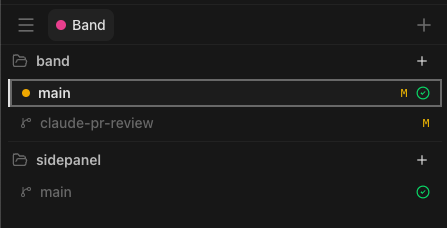
Adding Projects
There are two ways to register a project with Band:
From the Dashboard UI
Click the + button in the top-right corner of the dashboard toolbar. A dialog will appear where you can select a directory. Band validates that the selected path is a git repository and detects the default branch automatically.
From the CLI
Use the band projects add command to register an existing git repository:
band projects add /path/to/your/repo
band projects add /path/to/your/repo --label my-label
The CLI detects the repository name and default branch. You can optionally assign a label
at registration time using the --label flag.
Removing Projects
Removing a project from Band unregisters it from the dashboard. It does not delete the repository or any of its files. You can remove a project by:
- Right-clicking the project name and selecting Remove from list.
- Using the CLI:
band projects remove <name>
Reordering Projects
Projects in the sidebar can be reordered by drag-and-drop. On desktop, click and drag a project name up or down to rearrange. On mobile, press and hold a project until it lifts, then drag it to the new position. The new order is persisted automatically.
Collapsing Projects
Click the chevron next to a project name to collapse or expand its workspaces. Collapse state is remembered between reloads, so projects you rarely look at can stay tucked away. Label section headers can be collapsed the same way.
Labels and Filtering
Projects can be organized using color-coded labels. Labels are created in the Settings page, and then assigned to projects via the right-click context menu.
- Right-click a project name to see the Set label submenu.
- Select a label to assign it, or choose None to remove the label.
- Use the label filter dropdown in the toolbar to show only projects with a specific label.
- When labels are defined, projects are visually grouped by label with colored section headers.
You can also drag projects between label groups to reassign labels quickly.
Project Configuration
Each project can have a .band/config.json file in its repository root. This
file configures setup and teardown scripts that run during workspace lifecycle events.
{
  "setup": "npm install",
  "teardown": "docker compose down"
}
The setup script runs automatically after a workspace is created. The
teardown script runs before a workspace is removed. Both are non-fatal —
if they fail, the operation continues.
Context Menu
Right-clicking a project name reveals additional actions:
- Set label — Assign or remove a color-coded label.
- Copy path — Copy the project's filesystem path to the clipboard.
- Open in Finder — Reveal the project directory in Finder.
- Remove from list — Unregister the project from Band.