
Creating Your First Workspace
A workspace in Band is a git worktree — an isolated copy of your repository with its own branch and working directory. Workspaces let coding agents work on features or fixes without touching your main branch or interfering with each other.
What are git worktrees?
Git worktrees are a built-in git feature that lets you check out multiple branches of the
same repository simultaneously, each in its own directory. Unlike cloning the repo multiple
times, worktrees share the same .git history, so they are fast to create and
use minimal disk space.
Band manages worktrees for you. When you create a workspace, Band creates a new branch, sets up a worktree directory, and runs any setup scripts defined in your project configuration. When you remove a workspace, Band cleans up the branch and directory.
Create a workspace via the dashboard
- Open the Band dashboard and find your project in the sidebar.
- Click the "+ New" button next to the project name.
- Enter a branch name for the workspace (e.g.,
feat/auth). - Optionally pick a base branch to branch from (defaults to the project's main branch).
- Optionally type an initial prompt — this will be sent to the coding agent as soon as the workspace is ready.
- Click Create.
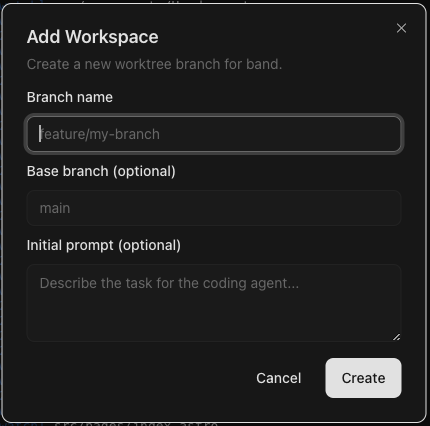
The workspace appears under the project in the sidebar. You can click on it to view its details, including the worktree path, branch name, and any running tasks.
Create a workspace via the CLI
Use the band workspaces create command to create a workspace from your terminal:
band workspaces create my-app feat/login
This creates a new branch called feat/login in the my-app project
and sets up a worktree directory for it. The command returns the path to the new worktree.
To branch from a specific base branch instead of the default:
band workspaces create my-app feat/login --base developYou can also create a workspace and immediately submit a task to start the agent working:
band workspaces create my-app feat/auth --prompt "Implement JWT authentication for the API"This is the recommended workflow for most cases — it creates the workspace and dispatches a task in a single step.
Setup scripts
If your project contains a .band/config.json file with a setup
script, Band runs it automatically after creating the worktree. This is useful for
installing dependencies or performing other initialization:
{
  "setup": "npm install",
  "teardown": "rm -rf node_modules"
}
Setup scripts run inside the worktree directory. If a setup script fails, the workspace is still created — the failure is non-fatal and reported in the dashboard.
Workspace isolation
Each workspace is fully isolated. An agent working in one workspace cannot affect files in another workspace or on your main branch, so you can safely run multiple agents in parallel:
band workspaces create my-app feat/auth --prompt "Add authentication"
band workspaces create my-app feat/search --prompt "Add full-text search"
band workspaces create my-app fix/perf --prompt "Optimize database queries"
Listing and removing workspaces
To see all workspaces, or filter by project:
band workspaces list
band workspaces list my-app
When you are done with a workspace, remove it to clean up the worktree directory and branch:
band workspaces remove my-app feat/loginNext step
Now that you have a workspace, learn how to run your first task and dispatch a prompt to a coding agent.