
Flexible layout
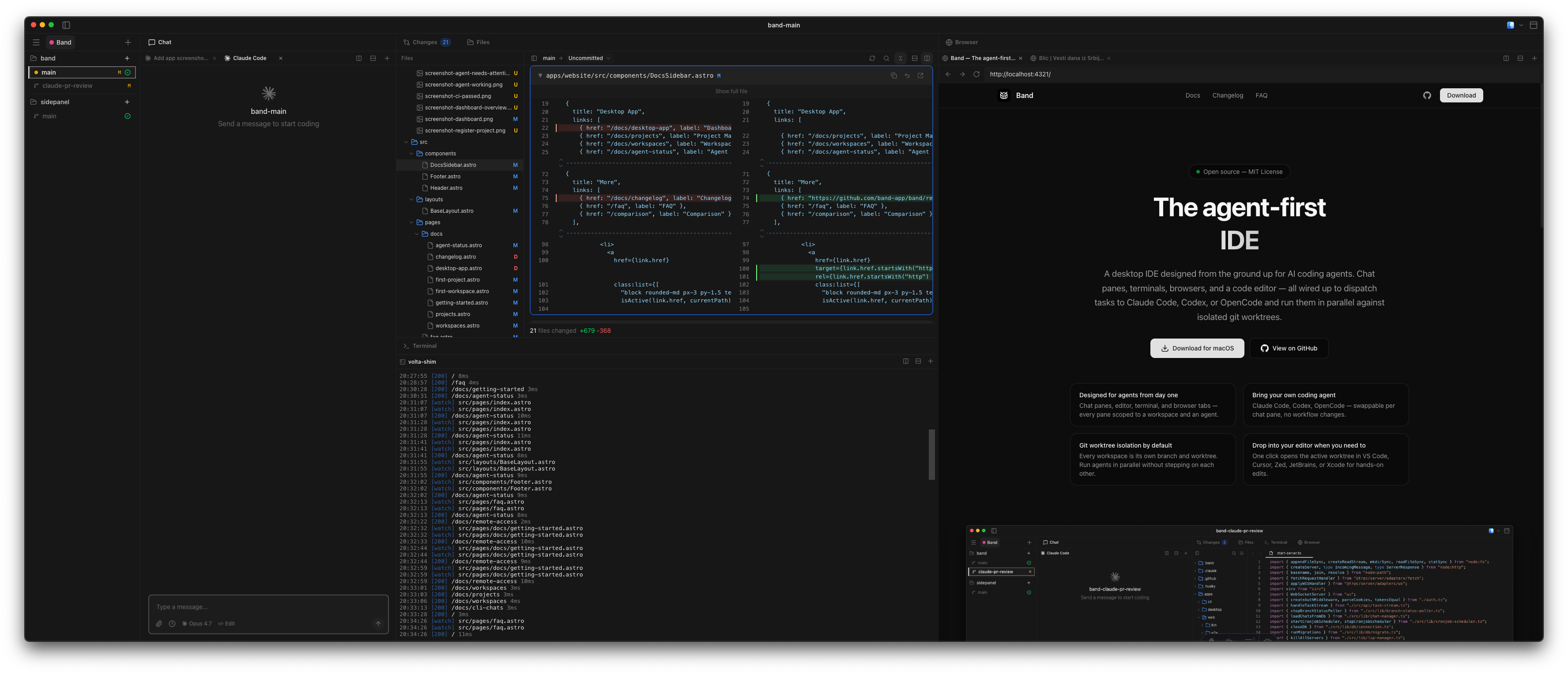
Band's window is built from a grid of resizable, reorderable panes. Split it horizontally or vertically, drop any pane type into any slot, and rearrange the layout however suits the task — there is no fixed sidebar-and-main pattern. Layouts are persisted, so the arrangement you settled on comes back the next time you open Band.
The same interface runs as the desktop app and as a browser-based dashboard over a Cloudflare tunnel, so the layout you arrange on your Mac is exactly what shows up on your phone or another device.
Pane types
The pane types you can mix in:
- Workspaces — project and workspace navigation tree.
- Chat — conversation with a coding agent in the active workspace.
- Code editor — open files from the worktree for review and navigation.
- File tree — browse the worktree's directory structure.
- Terminal — an interactive shell rooted in the worktree.
- Browser — an in-app browser tab for verifying running services.
- Diff viewer — review the worktree's changes against its base branch.
- Search — file and content search across the workspace.
Show or hide individual panes
Any pane can be turned off completely. Open the panel-visibility menu in the top-right of the window to toggle individual panes on or off, or use the keyboard shortcut next to each entry to flip a pane in or out without leaving the keyboard.
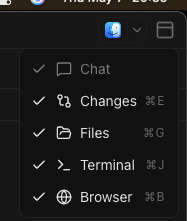
The default keyboard shortcuts are:
- ⌘B — toggle Projects sidebar.
- ⌃0 — focus Projects (matches VS Code Focus Side Bar).
- ⌃⌘I — show Chat.
- ⇧⌘G — show Changes.
- ⇧⌘E — show Files.
- ⌃` — show Terminal.
- ⇧⌘B — show Browser.
Hiding a pane does not destroy its state — turning it back on returns you to the same scroll position, terminal session, or browser tab as before.
Mobile Layout
On smaller screens (phones and tablets), the interface adapts to a mobile-friendly layout. The sidebar collapses into a navigation menu, and content panels stack vertically. This makes it easy to monitor and manage agents from your phone, especially when combined with remote access.
Chat
The chat pane is where you talk to a coding agent. Send a prompt, watch the agent's response stream back in real time, see every tool call it makes, and approve or reject pending permission requests inline. Each pane is scoped to a single workspace.
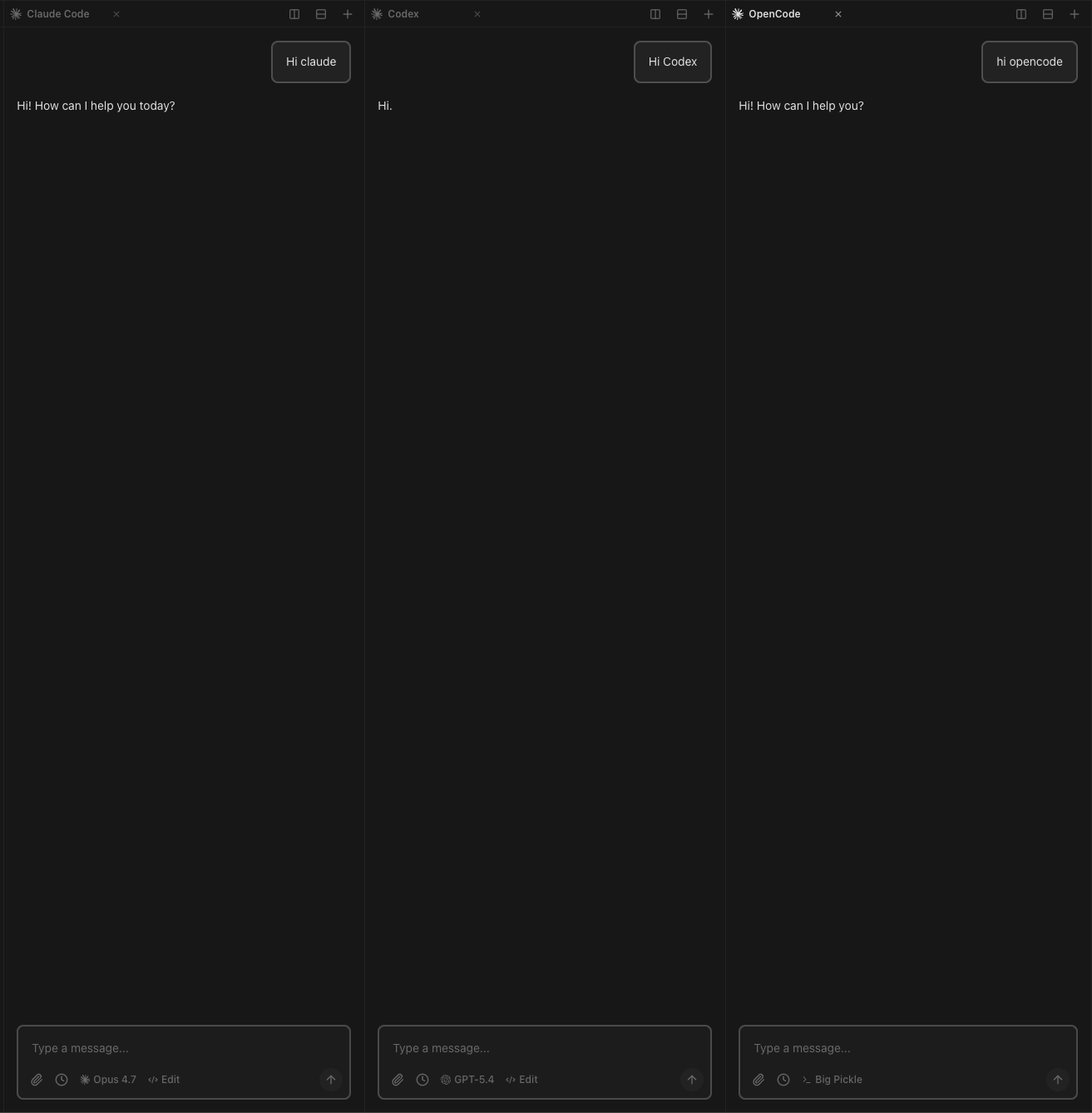
You can run multiple chat panes in the same workspace, each driving a different coding agent (or the same agent on a different model). Open a Claude Code pane on Opus, a Codex pane on GPT-5, and an OpenCode pane on a custom subagent — ask all three the same question to compare answers, split the work between them, or use one to review what another is doing.
Streaming and tool calls
Each chat pane shows a live stream of agent activity. Messages include:
- Agent responses — text output from the AI agent.
- Tool calls — file edits, terminal commands, and search operations.
- File changes — inline diffs showing what the agent modified.
- Status updates — task progress, completion, and error messages.
Chat output is streamed in real time over Server-Sent Events
(/api/tasks/<chatId>/stream), so you see agent output as
soon as it is generated. You can also send messages to the agent directly
from the chat input. (Terminals and language servers use raw WebSockets
— see Architecture.)
Code Viewer
The built-in code viewer displays files from the workspace with syntax highlighting. You can browse files directly in the dashboard without switching to your editor.
- Syntax highlighting for common languages.
- Line numbers and code folding.
- Direct links from agent tool calls to the relevant file and line.
File Browser
The file browser shows the workspace directory tree. Navigate through directories, open files in the code viewer, and see which files were recently modified by the agent.
Terminal
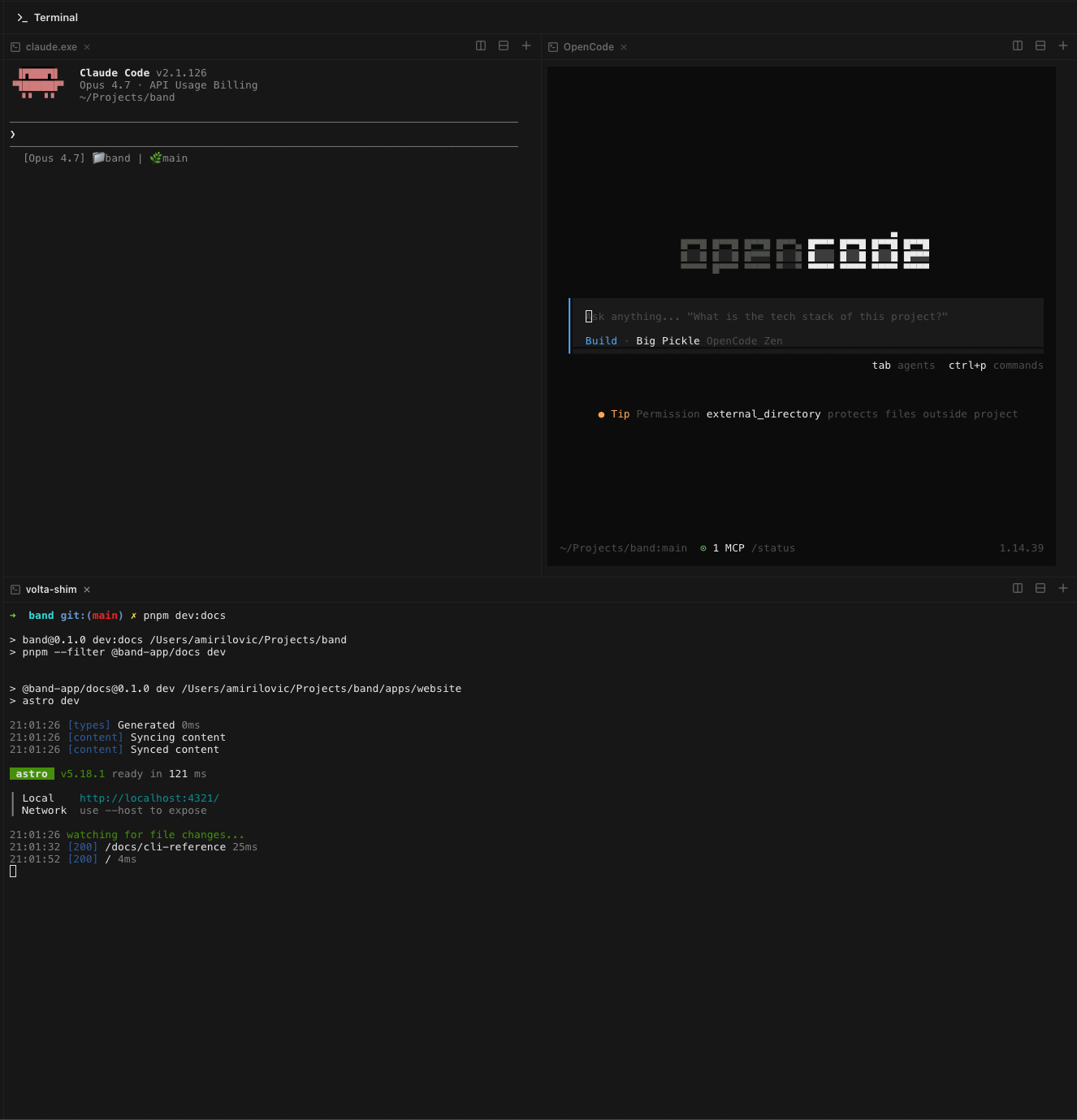
The terminal pane is a full interactive shell rooted in the active workspace's worktree — run builds, watch logs, exec into containers, or drive a TUI like Claude Code or OpenCode, anything you would do in iTerm or Warp.
You can open as many terminals at once as you want, each with its own session. Stack them as tabs inside one pane, split a single pane into rows or columns, or drop additional terminal panes anywhere in the layout — horizontal, vertical, or a grid. The arrangement is yours, using the same drag-and-drop primitives as the rest of Band.
Browser
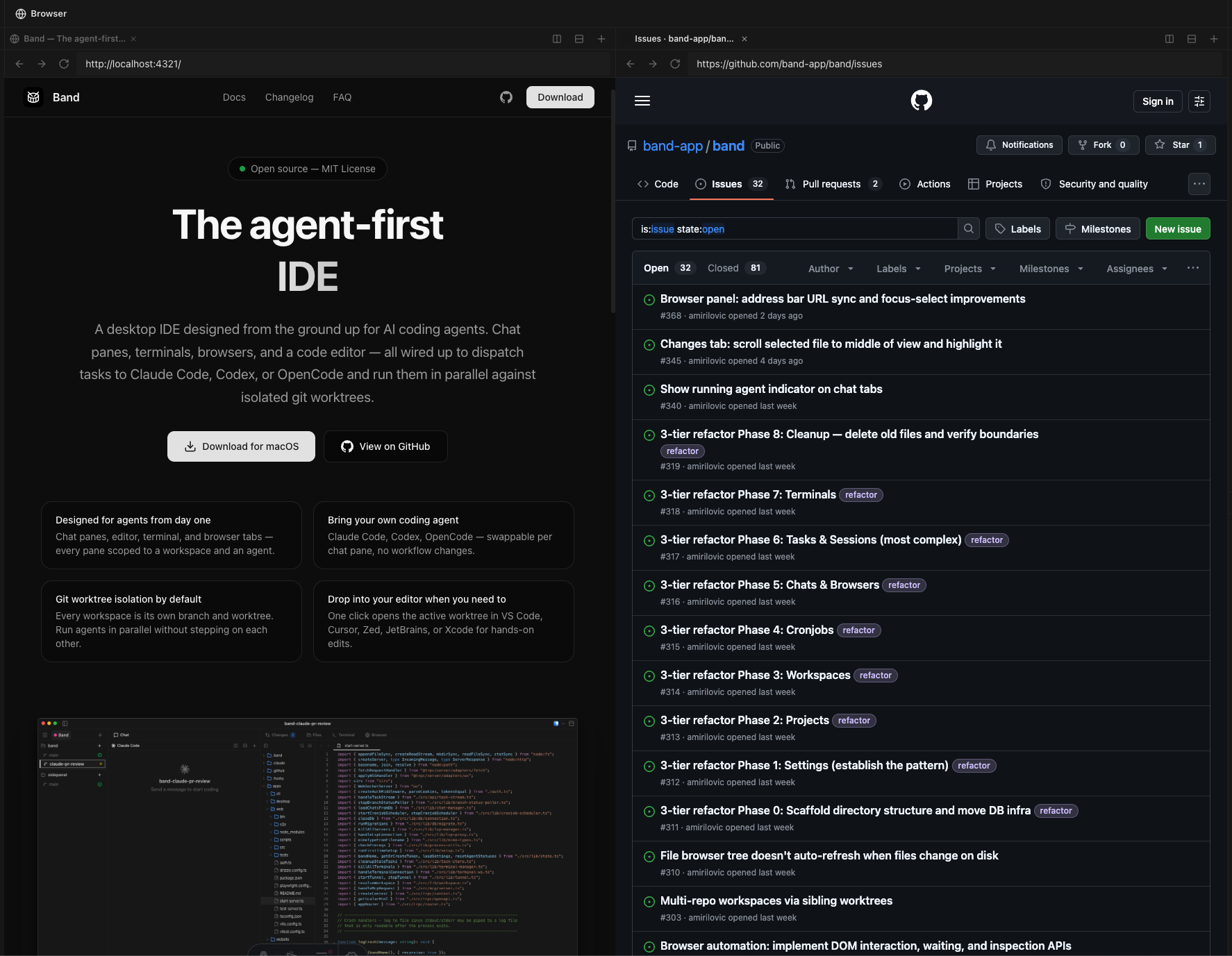
The browser pane is a full in-app web browser scoped to the active workspace. Use it to verify a running service, scan an issue tracker, read documentation, or eyeball a UI change — without leaving Band.
The same flexible layout applies: open as many browser tabs as you want, stack them as tabs in one pane, split a pane into rows or columns, or drop additional browser panes anywhere in the dashboard. Pull up the localhost dev server next to the agent's chat, your project's GitHub issues next to the diff viewer, or your design tool next to the editor — whatever the task needs.
Git Diff Viewer
The diff viewer shows all changes made in the current workspace compared to the base branch. This gives you a clear picture of what the agent has done and makes it easy to review before merging.
- Side-by-side or unified diff view.
- File-by-file change navigation.
- Summary of added, modified, and deleted files.
- Per-file revert and a one-click commit dialog (with optional AI-generated commit messages).
See the Changes view page for the full walkthrough — branch comparison, find-in-changes, reverting files, and committing from the dialog.
File Search and Content Search
The dashboard includes two search modes:
- File search — Find files by name using fuzzy matching. Type a partial filename to quickly navigate to the right file.
- Content search — Search for text within files across the workspace. Results show matching lines with context, similar to grep or ripgrep output.