
Changes view
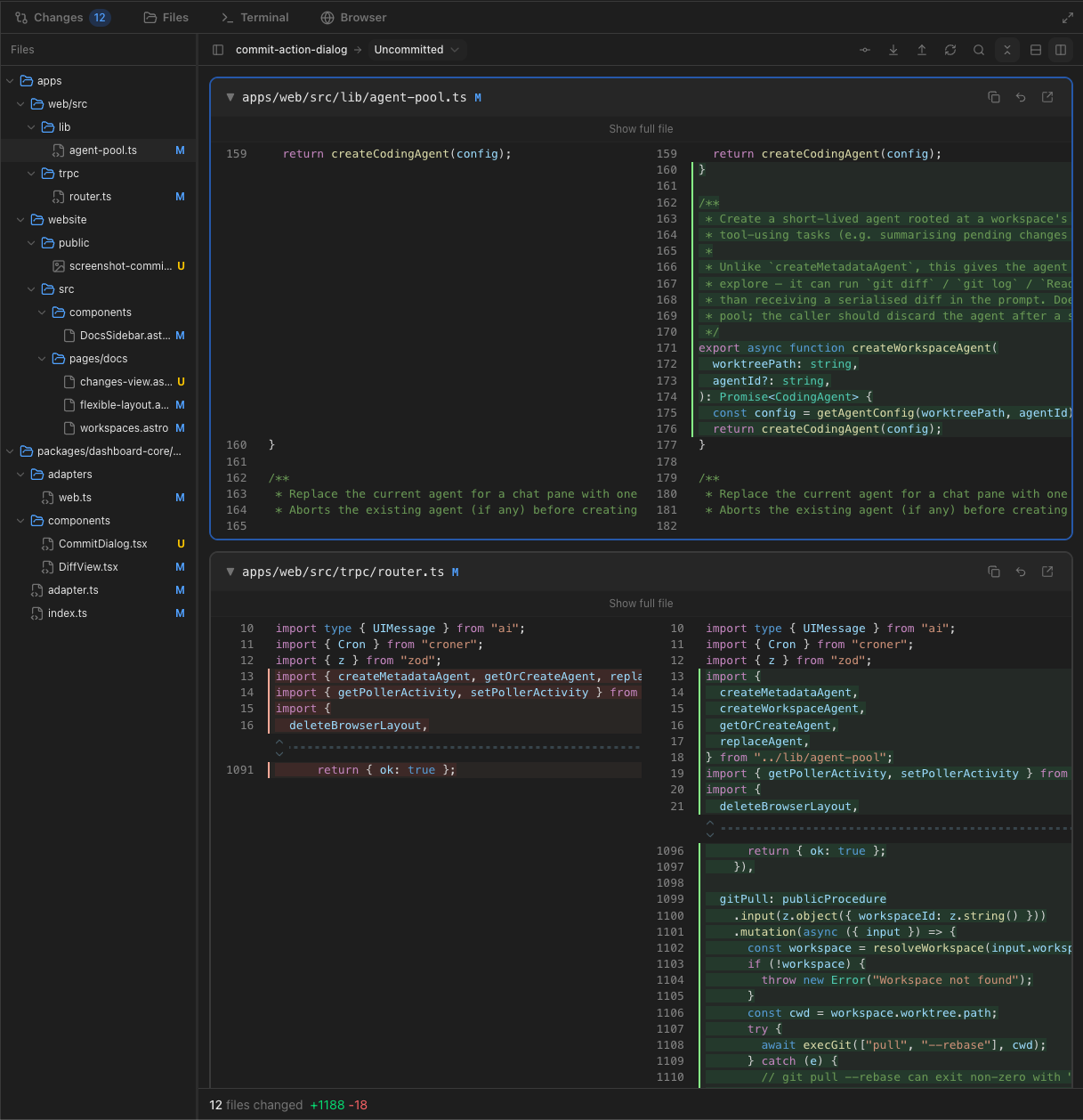
The Changes view is Band's built-in diff reviewer for the active workspace. It shows every modified, added, deleted, untracked, and renamed file in the worktree, lets you read the changes inline with syntax highlighting, and gives you the basic git actions you usually run from a terminal — revert a single file, or stage and commit everything from a dialog.
Open it as its own pane (drag and drop a Changes pane anywhere in the layout) or focus it from the keyboard with ⇧⌘G. Like every other pane in Band, it lives inside the flexible layout — resize it, split it next to the editor, or stack it as a tab.
What it shows
The file list is split into sections. A section appears only while it has files, and its header shows how many. Click a header to collapse the section; Band remembers which sections you collapsed.
- Conflicts — files left unmerged by a merge, rebase or cherry-pick, marked with a red !.
- Changes — edits in the working tree that are not
staged (
git diff). - Staged Changes — what the next commit will
contain (
git diff --cached). A file edited again after staging is listed here and under Changes. - Untracked Files — new files git does not track yet.
- Committed on Branch — files changed by the branch's commits since it forked from the compare branch. Uncommitted work never shows up here.
Each row shows the lines added and removed and a status letter: M modified, A added, D deleted, R renamed, C copied and U untracked. Clicking a row opens that section's diff for the file; View all in a section header opens every file of the section in one tab.
Comparing against a branch
The Committed on Branch section compares the
workspace's HEAD against the project's default branch
(e.g. main). The branch picker under the current branch
name lets you pick any other local or remote branch instead. Band uses
git merge-base, so you see only the changes your branch
introduced, not unrelated commits that have landed on the target.
Your pick is remembered per workspace, so coming back to a workspace later restores the same compare branch.
Reading diffs
- Unified view stacks deletions on top of insertions in a single column — the default in narrow panes.
- Split view shows the old file on the left and the new file on the right. Available when the pane is wide enough to be readable; below that threshold the view falls back to unified automatically.
- Expand context — the dashed separators between hunks expand more lines around the change. Click repeatedly to widen the context, or use Show full file to load the entire file at once.
- Find in changes (⌘F) searches across every open diff in the pane — case-sensitive, whole-word, and regex modes are all supported.
Line numbers reflect the real file line numbers (mapped through the diff hunk headers), not the position in the trimmed diff — so jumping to a line in the editor lines up with what the diff shows.
Staging and discarding
Hover a file or folder row for its actions, or right-click it. The same actions sit in each section header, where they apply to every file in the section.
- Stage (+) — in Changes and Untracked Files. In Conflicts it marks the file resolved.
- Unstage (−) — in Staged Changes.
- Discard — in Changes it throws away unstaged edits and keeps what is staged; in Staged Changes it returns the file to its last committed version; in Untracked Files it deletes the file. A confirmation dialog comes first.
Files in Committed on Branch have no actions: they are history. The right-click menu also copies a file's relative or absolute path.
Commit changes
The toolbar's Commit button (the git-commit icon next to Reload changes) opens the commit dialog. From there you can stage every change in the worktree — tracked and untracked — and create a commit on the workspace's current branch without leaving the Changes view.
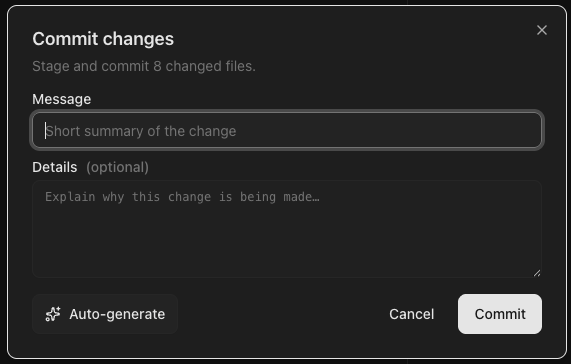
The dialog has two fields:
- Message — the commit subject. Capped at 200 characters in the input; the convention in most projects is to keep it under 72.
- Details (optional) — the commit body. Use it to explain why the change is being made, link to issues, or call out follow-up work. If you leave this empty Band sends only the subject to git.
When you click Commit, Band runs
git add -A followed by a single git commit
in the workspace's worktree. The Changes view refreshes immediately so
the diff reflects the new HEAD.
Auto-generate the message
The Auto-generate button asks your default coding agent — the one set in Settings — to write the commit message for you. The agent runs as a short-lived, one-shot session rooted at the worktree, with its normal Bash and file-read tools available, and is instructed to:
- Run
git statusandgit diff HEADto see what changed. - Optionally peek at recent commits or surrounding files to match the project's commit style.
- Output a single commit message in subject + body format.
Because the agent reads the diff itself with tools, the message stays accurate even on large change sets — nothing has to be truncated into the prompt. When the agent is done, the subject and body are written into the dialog so you can edit them before committing. A small note under the fields shows which agent produced the suggestion.
If you press Commit while the message field is empty, Band will auto-generate and commit in one step — useful when you trust the agent's summary and want to keep moving. If no coding agent is configured at all, Band falls back to a built-in Claude Code definition; if that fails too, the dialog surfaces the error inline so you can fix it (or type the message yourself).
Pre-commit hooks
The commit runs in your worktree exactly the way it would from a
terminal, so any pre-commit hook configured in the
repository (Husky, lefthook, native git hooks, etc.) executes
normally. If a hook fails, the commit is aborted and the dialog shows
the hook's error output so you can fix the underlying issue and try
again. Band does not pass --no-verify — checks are
not skipped behind your back.
Git pull and push
The toolbar also exposes the two most common branch-sync actions:
- Git pull — runs
git pull --rebasein the workspace's worktree, then refreshes the diff so the change set reflects the newHEAD. - Git push — runs
git push; if the branch has no upstream yet, Band falls back togit push --set-upstream origin <branch>automatically.
While a pull or push is in flight, the button shows a spinner and the rest of the git actions are disabled to avoid concurrent operations on the same worktree. Successes and failures appear briefly above the bottom status bar — success messages auto-dismiss after a couple of seconds, errors stick around with a × to close them so you can read git's output (e.g. rejected, non-fast-forward or merge conflicts).
Both actions are also available from the workspace context menu on the project sidebar — the toolbar buttons are simply a convenience for users who already have the diff open.
Auto-refresh
The Changes view stays in sync with the worktree without you having to hit reload. Band runs a branch-status poller that watches the workspace for git activity (commits made elsewhere, files written by the agent, branch checkouts from a terminal) and pushes updates over the same Server-Sent Events stream the rest of the dashboard uses. When something changes, the file list refreshes; expanded files re-fetch their diffs while preserving your context-expansion and scroll position.
There's also a manual Reload button in the toolbar for the rare case you want to force a refresh.
Keyboard shortcuts
- ⇧⌘G — show / focus the Changes pane.
- ⌘F — open Find in changes within the active diff pane.